In the previous section, we processed events related to command buttons and check buttons. Next, let’s consider events that are not related to controls.
 Create the 'Try 2-2' Project
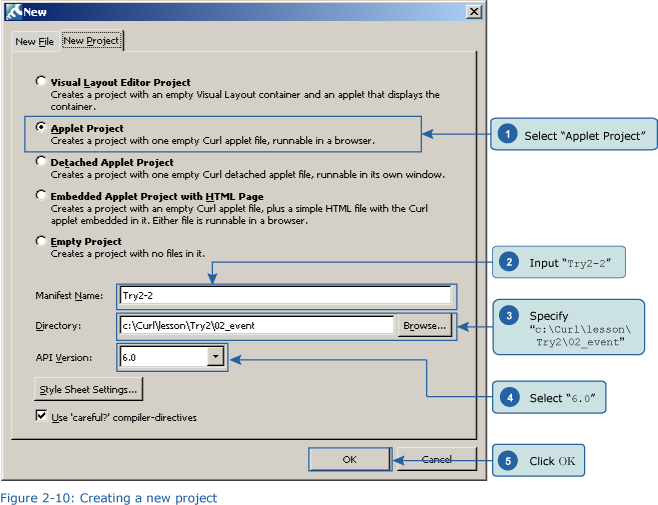
Close the Try 2-1 project and then, from the IDE “File” menu, select “New Project.” In the "New Project" dialog box, select "Applet Project" (1), input "Try2-2" (2), specify c:\Curl\lesson\Try2\02_event in the “Directory” field (3), set the "API Version" to "6.0" (4), and then click "OK" (5).
 Inputting the Program
Next, we’ll input the following program code. Or, if you prefer, you can copy the program from c:\Curl\Try2\02_event\start.curl and then paste it into the editor.
Code:
{Frame
height = 5cm,
width = 5cm,
margin = 1cm,
background = orange,
{Frame
height = 3cm,
width = 3cm,
background = pink,
{on e:PointerPress at f:Frame do
set f.background = #00FF00
{e.consume}
},
{on e:PointerRelease at f:Frame do
set f.background = pink
{e.consume}
}
},
{on e:PointerPress at f:Frame do
set f.background = #FF0000
{e.consume}
},
{on e:PointerRelease at f:Frame do
set f.background = orange
{e.consume}
}
} Save the File, and then Execute the Program
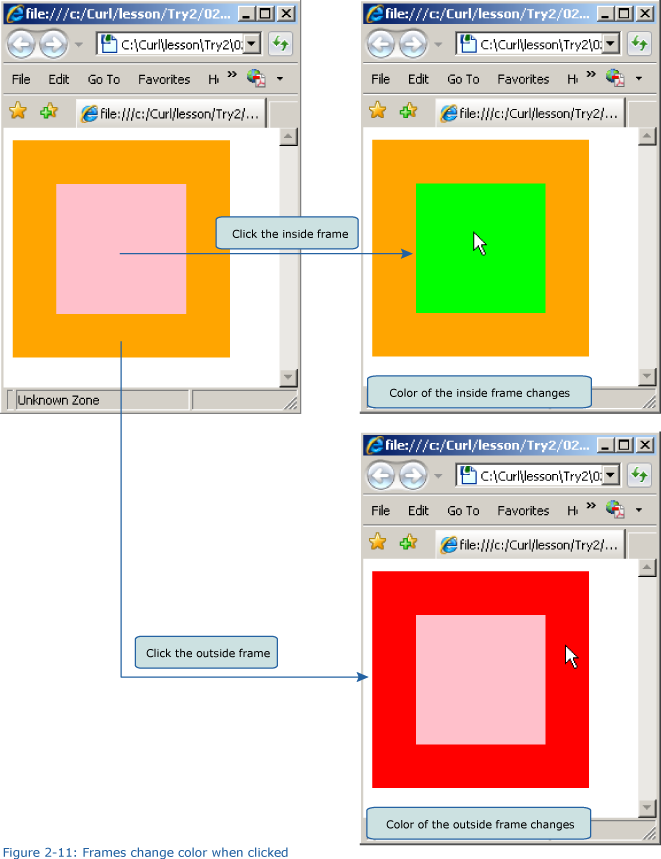
After inputting the code, save the file, and then execute the program. As a result, your browser will display an orange-colored Frame, inside of which is a pink Frame. If we click the inside Frame, its color changes from pink to lime-green. And, if we click the outside Frame, it changes from orange to red.