Application 1: Specifying the graph axes
Next, we’ll specify the gradations and positions of the graph axes.
 Create the 'Try 4-2' Project
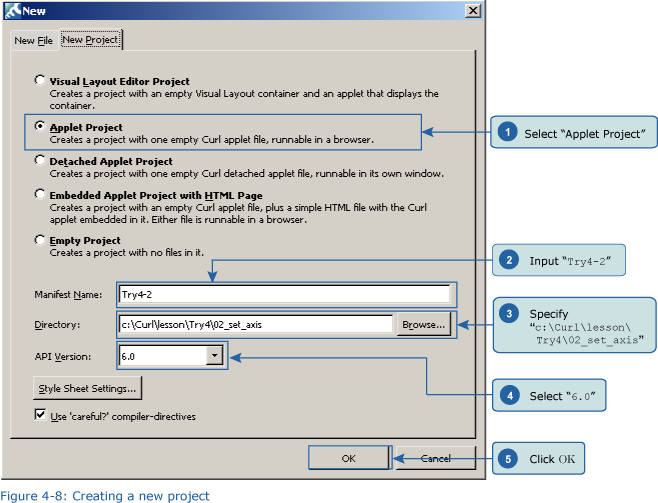
Close the Try 4 project and then, from the IDE 'File' menu, select 'New Project'. In the 'New Project' dialog box, select “Applet Project” (1), input “Try4-2” (2), specify c:\Curl\lesson\Try4\02_set_axis in the “Directory” field (3), set the API Version to 6.0 (4), and then click OK (5).
 Inputting the Program
Next, we’ll input the program. You can copy the program code below or use c:\Curl\Try4\02_set_axis\start.curl and then paste it into the editor in the IDE.
Code:
{import * from CURL.GUI.CHARTS}
{value
let data:RecordSet = {RecordSet
{RecordFields
{RecordField name, domain = String},
{RecordField age, domain = int},
{RecordField score, domain = int}
},
{RecordData name = Matt, age = 33, score = 88},
{RecordData name = Sarah, age = 27, score = 79},
{RecordData name = Jacob, age = 26, score = 90}
}
let chart:LayeredChart = {LayeredChart
height = 5cm,
width = 10cm,
top-axis = {ChartAxis {ChartDataSeries data, name}},
left-axis = {ChartAxis {ChartDataSeries data, age}},
right-axis = {{NumericDataSeriesAxis-of float}
force-zero? = false,
{ChartDataSeries data, score}
},
{LineLayer
{ChartDataSeries data, score},
{ChartDataSeries data, age}
}
}
{VBox
{RecordGrid
record-source = data,
height = 3cm,
width = 10cm
},
chart
}
} Save the File, and then Execute the Program
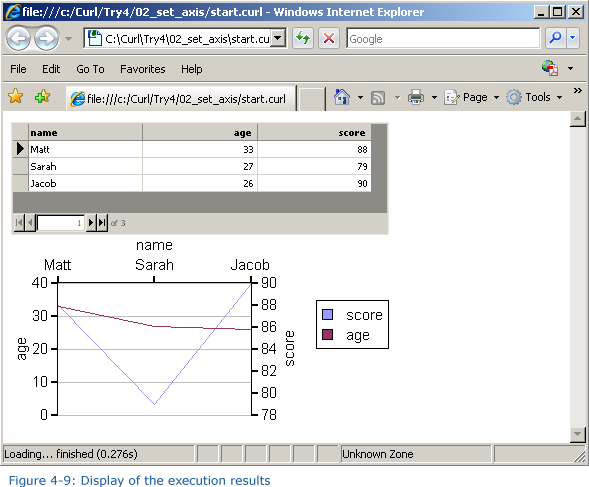
After inputting the code, save the file, and then execute the program. The following result will appear in your browser.